AI-powered meeting assistants have quickly become a normal part of online meetings. Tools that automatically transcribe conversations, create meeting notes, summarize discussions, and generate action items can save employees a significant amount of time.
But they also create a new problem for IT administrators: Who authorized that bot to join the meeting, and where is the meeting data going?
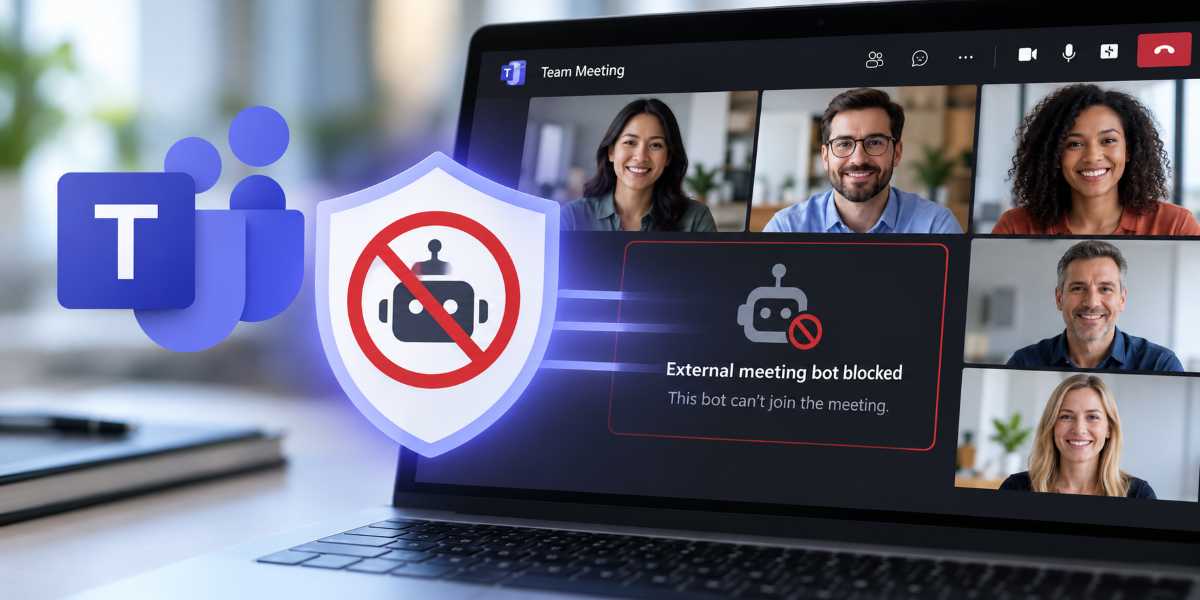
Microsoft is addressing that concern with a new Microsoft Teams meeting security control that allows administrators to automatically block detected external meeting bots from joining meetings.
Previously, Teams could identify many external meeting bots and place them in the lobby for an organizer to approve. The new control allows IT administrators to remove that decision from the meeting organizer entirely.
If Teams detects the participant as an external bot, it can simply prevent the bot from joining.
For organizations dealing with confidential data, intellectual property, legal conversations, financial information, security incidents, or other sensitive discussions, this is a Teams security setting worth reviewing.
How Microsoft Teams Previously Handled Meeting Bots
Microsoft introduced bot detection in Teams earlier in 2026.
When Teams detects an external meeting assistant, such as an AI transcription or note-taking service, the bot can be identified and placed into the meeting lobby.
This happens even when the meeting’s normal lobby settings might otherwise allow the participant to bypass the lobby.
The organizer or another authorized participant must then explicitly approve the bot before it can enter the meeting.
Microsoft calls the corresponding meeting policy setting Manage external bots and their access to meetings.
The default configuration is currently:
RequireApprovalWhenDetected
With this setting enabled, Teams detects suspected bots and forces them into the lobby until someone approves them.
That is certainly better than allowing an automated service to silently enter a meeting, but there is still a potential weakness: human error.
During a large meeting, an organizer may see several people waiting in the lobby and quickly approve them without carefully reviewing every participant.
That can result in an external AI assistant gaining access to a meeting that the organization never intended it to attend.
Microsoft Teams Can Now Automatically Block Detected Bots
The new capability takes the protection one step further.
Administrators can configure Teams meeting policies so that detected external bots are automatically blocked instead of being sent to the lobby for approval.
This effectively changes the workflow from:
Detect → Lobby → Organizer decides
to:
Detect → Block
Microsoft lists the new PowerShell value as:
BlockDetectedBots
When this option is applied, identified external meeting bots are prevented from entering meetings governed by that meeting policy.
That distinction is important.
The feature does not necessarily block every automated service on the internet. Teams first has to identify the participant as a bot.
Microsoft says its bot detection uses a combination of infrastructure and behavioral signals observed during the meeting join process.
Once a participant is classified as a bot, Teams applies the behavior defined by the organization’s meeting policy.
Why IT Administrators Should Pay Attention
AI meeting assistants are becoming another form of Shadow IT.
An employee may sign up for an AI note-taking application using a corporate email address and connect the service to their calendar without fully understanding how meeting information will be processed or stored.
That assistant may then begin joining meetings automatically.
From the employee’s perspective, the tool is convenient.
From the security team’s perspective, the situation can be much more complicated.
The bot could potentially receive audio from a meeting, generate a transcript, process conversations, summarize confidential discussions, and store that information in infrastructure outside of your Microsoft 365 environment.
That raises several questions for IT and security teams.
Where is the transcript stored? How long is it retained? Who can access it? Is the service covered by your organization’s vendor security review? Does the company have a data processing agreement with the provider? Can users delete the data? Is information being used to train an AI model?
A perfectly legitimate AI productivity tool can still create a security or compliance problem when it has not been reviewed or approved by the organization.
Microsoft specifically identifies privacy, compliance, recording, transcription, and potential data leakage as concerns associated with external meeting bots.
Where IT Admins Can Find the Setting
Microsoft is integrating the control into Teams meeting policies.
In the Teams admin center, administrators should look under:
Meetings → Meeting policies → Select a policy → Meeting join and lobby
Look for the setting:
Manage external bots and their access to meetings
Teams meeting policies can be configured broadly or assigned to specific users and groups.
This gives IT departments several deployment options.
For example, an organization may decide that external meeting assistants are acceptable for general meetings but should never be allowed into meetings hosted by executives, Finance, Legal, Human Resources, Security, or Research and Development.
Instead of enforcing a single organization-wide policy immediately, administrators can create a more restrictive meeting policy and assign it only to high-risk groups.
Managing External Meeting Bots With PowerShell
Administrators who manage Teams through PowerShell can use the ExternalBotAccessMode property associated with Teams meeting policies.
Microsoft’s current Teams PowerShell documentation lists three possible behaviors:
AllowAllBots
Bot detection is disabled and bots are treated similarly to other external participants.
RequireApprovalWhenDetected
Detected bots are sent to the lobby and require approval before entering. This is the default behavior.
BlockDetectedBots
Detected external bots are prevented from joining the meeting.
For example, an administrator applying automatic blocking to the Global Teams meeting policy can use:
Set-CsTeamsMeetingPolicy -Identity Global -ExternalBotAccessMode BlockDetectedBots
You can verify the configuration with:
Get-CsTeamsMeetingPolicy -Identity Global | Select-Object Identity, ExternalBotAccessMode
Before applying the configuration globally, however, most organizations should test it using a separate meeting policy and a limited pilot group.
Don’t Enable It Globally Without Checking Your Environment
Automatically blocking bots sounds like an obvious security improvement, but there is an important operational consideration.
Your organization may already rely on external meeting assistants.
Sales teams may use AI meeting intelligence platforms. Recruiters may use automated transcription. Executives may use meeting summary tools. Employees with accessibility requirements may depend on third-party services.
Turning on automatic blocking across the entire tenant without reviewing those workflows could generate support tickets almost immediately.
A better approach is to treat this like any other security control deployment.
- Inventory your meeting-assistant tools. Identify approved and unapproved AI note takers, transcription services, and automated meeting tools currently being used. Then create a pilot meeting policy using
BlockDetectedBots, assign it to a small IT or security group, test external meetings, review legitimate business workflows, identify potential false positives, document approved AI meeting services, communicate the policy to employees, and only then consider expanding the policy to additional departments or the entire organization.
The important part is establishing governance around the technology rather than simply blocking it.
Employees should have a clear process for requesting approval for AI meeting tools instead of finding ways around IT controls.
Bot Detection Isn’t a Complete Security Boundary
IT administrators should also understand what this feature does not do.
Microsoft acknowledges that bot detection isn’t perfect.
Some external bots may not be detected, and a legitimate human participant could occasionally be incorrectly classified as a bot.
That means BlockDetectedBots should be treated as another layer in your Teams security architecture rather than a complete defense against unauthorized meeting access.
Organizations handling sensitive information should continue reviewing other Teams controls including anonymous meeting access, lobby configuration, presenter permissions, external access, guest access, meeting recording policies, and who is allowed to admit participants from the lobby.
Microsoft specifically recommends limiting lobby admission permissions to organizers and co-organizers where appropriate.
Layering these controls reduces the likelihood that an unauthorized user or automated service can access a sensitive meeting.
The Bigger Issue Is AI Governance
The Microsoft Teams bot blocking feature highlights a larger challenge that IT departments are increasingly facing.
AI applications are entering organizations faster than traditional application approval processes can keep up.
Employees don’t necessarily think of an AI transcription service as software that needs IT approval.
They see a button that says something like “Connect Calendar” and assume it is simply another productivity tool.
But once that application can attend meetings, process conversations, create transcripts, and store business information, it becomes part of your organization’s data security footprint.
IT departments therefore need policies covering not only Microsoft Copilot and enterprise AI platforms, but also third-party AI tools employees may independently adopt.
Meeting assistants are a good place to start.
Should You Enable Microsoft Teams Bot Blocking?
For organizations with strict data protection requirements, enabling BlockDetectedBots for at least certain groups is worth serious consideration.
Legal teams, security personnel, executives, finance departments, HR teams, engineering groups, and others regularly discussing sensitive information are obvious candidates.
Organizations with less sensitive environments may decide that Microsoft’s default RequireApprovalWhenDetected setting provides the right balance between productivity and security.
There isn’t necessarily one correct configuration for every Microsoft 365 tenant.
The important thing is that IT administrators now have another control available instead of relying entirely on meeting organizers to make security decisions in real time.
Final Thoughts
The rise of AI meeting assistants has created a new challenge for Microsoft 365 administrators.
These tools can provide real productivity benefits, but they can also create unmanaged copies of corporate conversations and move sensitive information outside the organization’s existing Microsoft 365 security and compliance boundaries.
Microsoft Teams’ new ability to automatically block detected external meeting bots gives IT administrators another way to address that risk.
The feature should not replace broader meeting security controls or AI governance policies. But it can remove one significant point of failure: expecting a busy meeting organizer to decide whether an unfamiliar automated participant should be allowed into a sensitive meeting.
For IT administrators, now is a good time to review your Teams meeting policies, identify which AI meeting assistants are already being used in your environment, and decide whether RequireApprovalWhenDetected or BlockDetectedBots is the right policy for your organization.